Open Camera
- 4.0
- Rating
- 100.00M
- Installs
- Free
- Price
 Analysis by App-foxy
I spent time using Open Camera as a practical everyday camera rather than treating it like a feature checklist. It is a free photography app from Mark Harman, and its open-source approach gives it a noticeably more direct character than many camera tools built around filters, accounts, or social sharing. I found the experience most interesting when I looked at who can comfortably operate it, how it behaves in changing situations, and where its straightforward design still leaves work for the user.
The app is available for Everyone and runs on Android devices using version 5.0 or later. It has been around since October 17, 2013, and its current version is 1.55. That long presence matters because this is not a novelty camera: it is a mature utility that aims to put ordinary photographic controls in the hands of people who want more say over the capture process.
How clearly the camera communicates and navigates
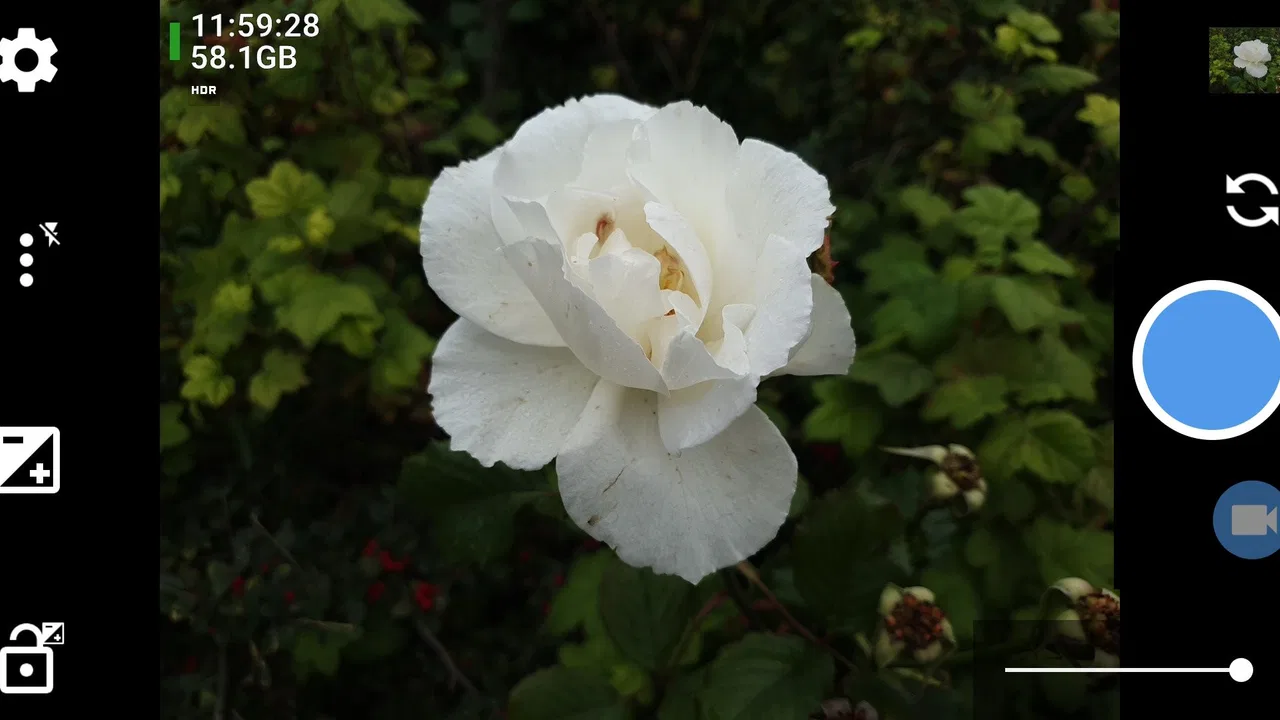
My first impression was that Open Camera feels like a camera tool before it feels like a polished visual playground. The main view keeps attention on the live image and the controls needed to take a picture. I did not have to move through a social feed, create an account, or pass through decorative screens before reaching the shutter. That simplicity can be valuable for someone who wants a predictable route from opening the app to taking a photo.
You May Also Like

 Pandora - Music & Podcasts
Pandora’s Music Is Easy to Start, but Harder to Recover
Pandora’s strength is its low-effort path from a seed to a station. Its weak spot is how much confidence it asks you to place in connection, setup, and quiet recovery.

 8 Ball Pool
 Is Built on Rivalries, Rematches, and Routine
A close look at the rivalries, rematches, shared routines, and unanswered safety questions that turn a quick pool match into a persistent mobile community.

 Samsung Music
’s Quiet Strength Is Playing What You Already Own
Its reach comes less from spectacle than from dependable access to a personal library. That simplicity is both the app’s strongest retention engine and its ceiling.

 AccuWeather: Weather Radar
AccuWeather Review: A Quick, Clear Forecast for Everyday Decisions
For everyday plans, the best forecast is the one you can understand quickly. AccuWeather makes rain timing, radar, and local conditions easy to act on, with a few trade-offs.

 Hill Climb Racing
Why Hill Climb Racing Still Turns Crashes Into One More Run
A tiny car, a bumpy hill and one more upgrade: Hill Climb Racing keeps resurfacing because its simple chaos makes every near-miss feel personal.

 AliExpress - Shopping App
AliExpress Makes Global Shopping Feel Personal, but Shoppers Bear the Risk
AliExpress turns a global marketplace into a pocket-sized discovery engine. Its reach is useful, its shopping loop compelling, and its trade-offs easy to miss.
More From Our News Desk
View All News


The interface is also easier to understand when I approach it as a set of camera controls rather than as an automatic phone-camera replacement. Some options are visible while others are reached through menus and settings, so the experience rewards a short setup session. I recommend opening the settings when you are calm, deciding which controls you actually need, and leaving the rest alone. That is more comfortable than trying to discover every option while standing in a busy street or preparing to capture a fast-moving moment.
There is a useful distinction between the app’s shooting screen and its deeper configuration. The shooting screen can remain fairly focused, while the settings area exposes more of the app’s flexibility. This separation helps prevent the viewfinder from becoming overloaded, but it also means a first-time user may wonder where a desired control has gone. I would not call the navigation confusing, yet it is less instantly self-explanatory than the camera built into many phones.
Readability depends heavily on the device and the way the user holds it. The app does not turn every control into a large, simplified button, so people with limited vision may need to increase the phone’s display size or use the system’s accessibility tools. Larger interface text can make menus easier to inspect, although it may also reduce how much information fits on screen. In practice, I would test the layout before relying on it for an important event.
One of the app’s strongest inclusive qualities is its lack of unnecessary visual noise. There are no promotional panels competing with the live image, and no pressure to browse content from other people. For a user who finds crowded interfaces tiring, that restraint can make the camera less mentally demanding. The trade-off is that the app expects the user to understand photographic terminology and device behavior rather than guiding every decision with a simplified wizard.
I also appreciate that this is an open-source camera rather than a closed, heavily branded experience. That does not automatically make every interaction accessible, but it does give the product a practical identity: the app is focused on taking photographs, not on persuading me to remain inside a larger service. For someone choosing a camera based on control, privacy-minded habits, or a dislike of account-based tools, that difference is meaningful.
Making the controls work for different motor abilities
Taking a picture is usually a one-action task, but reaching and stabilizing a phone can be much harder for someone with tremors, reduced grip strength, or limited range of motion. Open Camera is useful here because it is not limited to the most obvious shutter gesture. Depending on the phone and the chosen configuration, users can explore alternative ways of triggering the camera, including options that reduce the need to tap a small on-screen target at exactly the right moment.
I found this especially relevant for self-timer photography and situations where touching the phone would introduce movement. A short delay gives me time to steady the device or move into position. It also helps when the person taking the photo cannot comfortably maintain pressure on the screen while framing. The important point is to configure this before the moment matters; searching through settings while holding a phone one-handed is not an accessible workflow.
Voice-related capture options can also change the experience for someone who has difficulty reaching the shutter. I would treat them as situational tools rather than guaranteed solutions, because the result depends on the phone, surroundings, and how clearly the command is recognized. In a quiet room they may be convenient. At a crowded station or a windy outdoor location, a physical or on-screen control may be more dependable.
The app’s support for orientation and hands-free-style workflows can be helpful when the phone is mounted, resting on a surface, or positioned at an awkward angle. That makes it more suitable for documenting a craft project, recording a demonstration, or taking a group photograph without asking another person to operate the device. I would still check framing carefully, since removing the need to touch the shutter does not remove the need to position the camera correctly.
For users with limited fine motor control, the main weakness is density. A control may be easy to use once configured, but small icons and closely arranged interface elements can still make accidental taps possible. The app gives me more control than many minimal camera apps, yet that flexibility creates more targets to distinguish. A phone with a larger display may be more comfortable than a compact handset, and a stable grip or stand can make a bigger difference than any single setting.
There is also a learning curve around exposure and focus behavior. Someone who wants the camera to take a picture with one uncomplicated press may find the additional controls distracting. Someone who needs to lock focus on a document, keep exposure consistent across several images, or avoid repeated adjustments may find the extra control genuinely helpful. I see this as the central motor-access trade-off: fewer interactions are possible after setup, but reaching the right setup may require patience and precise taps.
Using it when the environment is difficult
Accessibility is not only about permanent disabilities. It also includes temporary and situational limits: bright sunlight, dim rooms, gloves, one free hand, noise, motion, or the need to work quickly. Open Camera performs best when I prepare for the situation instead of expecting the default layout to solve everything automatically.
For a realistic example, imagine photographing a paper receipt while carrying shopping bags. I would first place the phone on a stable surface or hold it against something firm, use the screen to frame the receipt, and activate a timer if pressing the shutter causes movement. If glare makes the screen hard to read, I would change position rather than repeatedly tapping at uncertain controls. The app can support that workflow, but it does not remove the physical problem of holding and aiming a phone.
For low-vision users, the live preview may be more useful than relying on a tiny thumbnail after capture, but the quality of that experience depends on the phone’s screen and camera hardware. Zooming the display or using the system’s magnification tools may help inspect controls, while a spoken screen reader may provide assistance for some interface elements. I would test the exact combination on the intended device because camera previews and custom controls do not always behave identically across Android phones.
People who are sensitive to visual clutter may prefer Open Camera’s restrained presentation, especially compared with camera apps that place filters, stickers, shopping prompts, and social features around the viewfinder. On the other hand, users who depend on very large labels, highly guided prompts, or an extremely simplified interface may find a phone manufacturer’s basic camera easier. The usual alternative is often less configurable but more immediately readable.
Outdoor use reveals another trade-off. A camera needs to be operated under glare, and the screen may be difficult to inspect even when the app itself is logically arranged. I found that preparing a preferred shooting mode indoors is more useful than trying to solve every problem outside. If you frequently photograph in changing light, it is worth practicing the route to the controls you need so that you can make adjustments by habit rather than by visual searching.
For people who use gloves, the app cannot change the sensitivity of the phone’s touch hardware. A timer, a physical volume control if supported by the device, or a remote-style setup may reduce direct screen contact, but the practical result varies by handset. This is a good example of why I would not promise that the app alone makes photography hands-free. It provides options, while the phone and the environment determine whether those options are comfortable.
Open Camera can also be useful for users who need consistency across a series of images. If I am photographing pages, labels, equipment, or a room for later reference, I prefer setting the framing and capture behavior once rather than relying on a fully automatic camera that changes its response from shot to shot. That consistency can reduce cognitive effort, particularly when the goal is documentation rather than artistic experimentation.
Where the inclusive experience still has friction
The biggest barrier is that flexibility is not the same as simplicity. Open Camera offers a broad collection of camera controls, but a person who needs a very clear, low-effort route may feel that the app asks too many questions. The built-in camera on a phone is often better for instant snapshots, especially when another person needs to pick up the device and take one picture without learning a new layout.
Another limitation is variation between Android devices. Camera hardware, screen dimensions, system controls, and manufacturer behavior can all affect what the app feels like in practice. A setting that is comfortable on one phone may be harder to reach on another. I would therefore judge the app on the actual device used by the person who needs it, not on a different handset or on general expectations about Android cameras.
The open-source identity is appealing, but it does not mean the app will explain every choice in the most beginner-friendly way. A user who has never adjusted focus, exposure, image format, or timer behavior may need to experiment. That is not a reason to reject it, but it does make the app less suitable for someone who wants a camera to hide all technical decisions.
Screen-reader users should be particularly practical when evaluating it. Some controls may be understandable through Android’s accessibility services, but the live camera preview, visual indicators, and custom arrangements can still require sighted assistance or prior setup. I would not assume that every visual state is conveyed perfectly through speech. Testing the exact tasks that matter—opening the camera, framing, changing settings, and saving a photograph—is more useful than relying on the app’s general reputation.
There is also a physical barrier that software cannot solve: photography still requires aiming, holding, and interpreting the scene. Open Camera can reduce some taps and provide more deliberate capture methods, but it cannot guarantee a steady frame, identify whether a subject is fully visible, or make every control reachable for every hand. A stand, a phone grip, or help with initial configuration may be the difference between an enjoyable experience and a frustrating one.
I would skip this app if my priority were instant computational photography, automatic scene enhancement, or a highly polished filter collection. The usual manufacturer camera may produce a pleasing result with less thought, and a dedicated creative camera may offer a more attractive editing workflow. Open Camera makes more sense when I value direct control, a focused photography purpose, and the ability to shape the capture process around my own habits.
What I would set up before recommending it
Before handing the app to someone who has access needs, I would create a small personal setup rather than presenting every option at once. I would choose a comfortable orientation, identify the preferred shutter method, test the timer, and confirm where captured images appear. Then I would take several practice photos in both a quiet indoor space and the environment where the app will actually be used.
I would also make a short routine for common tasks. For example: open the app, frame the subject, check the focus point, activate the chosen capture method, wait for the confirmation, and review the image. Repeating that sequence makes the camera less dependent on visual exploration. If the user needs different behavior for documents and people, I would prepare those workflows separately instead of changing many settings every time.
For a family member with shaky hands, I would prioritize stability and delayed capture over advanced image controls. For someone documenting work equipment, I would prioritize repeatable framing and easy review. For a user with low vision, I would test display enlargement and spoken feedback on the actual phone. These are different needs, and the app’s value comes from adapting its controls rather than from one universal accessibility mode.
It is also worth deciding who will troubleshoot the app. Because the interface exposes more camera behavior than a basic phone camera, a user may occasionally need help understanding why a photograph looks different from expected. Once the preferred setup is stable, that burden can become small. During the first few sessions, however, having a patient helper can make the difference between discovering useful controls and abandoning the app.
My inclusive verdict
Open Camera is a strong choice for people who want a free, focused Android photography tool that can be adjusted to different physical situations. Its open-source foundation, long availability, and practical control set make it more than a replacement shutter: it can become a deliberate camera for documentation, self-timer work, mounted phones, repeated shots, and users who dislike cluttered camera ecosystems.
Its accessibility story is best described as adaptable rather than effortless. I can build a workflow that reduces tapping, supports steadier capture, and avoids unnecessary visual distractions. At the same time, the app does not turn every control into a large, guided, universally accessible interaction. Device differences, small targets, technical settings, and the demands of framing remain real considerations.
The app has an average rating of 4.1 from around 286 thousand ratings, with over 100 million installs, which shows that it has reached a very broad Android audience. Those figures do not replace personal testing, but they fit my impression of a dependable utility rather than a niche experiment. It is free, and that removes an important barrier for people who want to try a more controllable camera without committing money first.
My recommendation is simple: choose it if you are willing to spend a little time shaping the controls around your needs. If you need a camera that anyone can open and operate immediately, the phone’s default option may be kinder. If you need a camera that can be prepared for one-handed use, delayed capture, consistent documentation, or a less distracting interface, this is where Open Camera earns its place. I would install it, configure only the features that matter, and judge it through real tasks rather than through the number of settings it offers.
FAQs for Open Camera
01What are the key features of Open Camera?
Open Camera is a versatile camera app offering features like auto-stabilization, ISO control, white balance adjustments, and exposure lock. It supports both photo and video modes, including 4K video recording, and provides manual focus and face detection. The app also includes a remote control feature via voice commands or external devices.
02Is Open Camera suitable for professional photography?
Yes, Open Camera provides a range of manual controls that can be beneficial for professional photography. Users have access to exposure, ISO settings, focus modes, and more. While it may not replace high-end DSLR cameras, it offers significant customization and control for mobile photography enthusiasts seeking advanced options.
03Does Open Camera require any special permissions?
Open Camera requires access to your device's camera and microphone to capture photos and videos. It also needs storage permissions to save files. Additionally, location permissions are optional, allowing for geotagging of photos. Users have the flexibility to enable or disable these permissions based on their preferences.
04Can Open Camera be used on both Android and iOS devices?
Open Camera is currently available only for Android devices. It supports a wide range of Android versions, ensuring compatibility with most smartphones and tablets. However, there is no official iOS version as of now, so iPhone users will need to explore alternative camera apps.
05Is Open Camera free to use, or does it have in-app purchases?
Open Camera is completely free to download and use, with no in-app purchases or advertisements. This makes it an excellent choice for users seeking a powerful camera app without the need to spend money. The app is open-source, which also allows for community-driven enhancements and updates.
Pros
- Completely free with no ads.
- Highly customizable settings.
- Supports external microphones.
- Open source for transparency.
- Lightweight and fast performance.
Cons
- Interface can be overwhelming.
- Limited editing features.
- No built-in filters.
- Occasional bugs reported.
- No cloud storage option.

Open Camera
Gallery